All Extras Packs Download Instructions
Thanks for purchasing the All Extras Packs in-app! These instructions will be useful if you have some questions on downloading it in Live Home 3D for Mac.
When you purchase the license from within the app, the download starts automatically. If you haven’t stopped the download, here is how you can find the purchased All Extras Packs. In your Live Home 3D for Mac open the in-app Store by selecting the “Live Home 3D > Store…” menu.
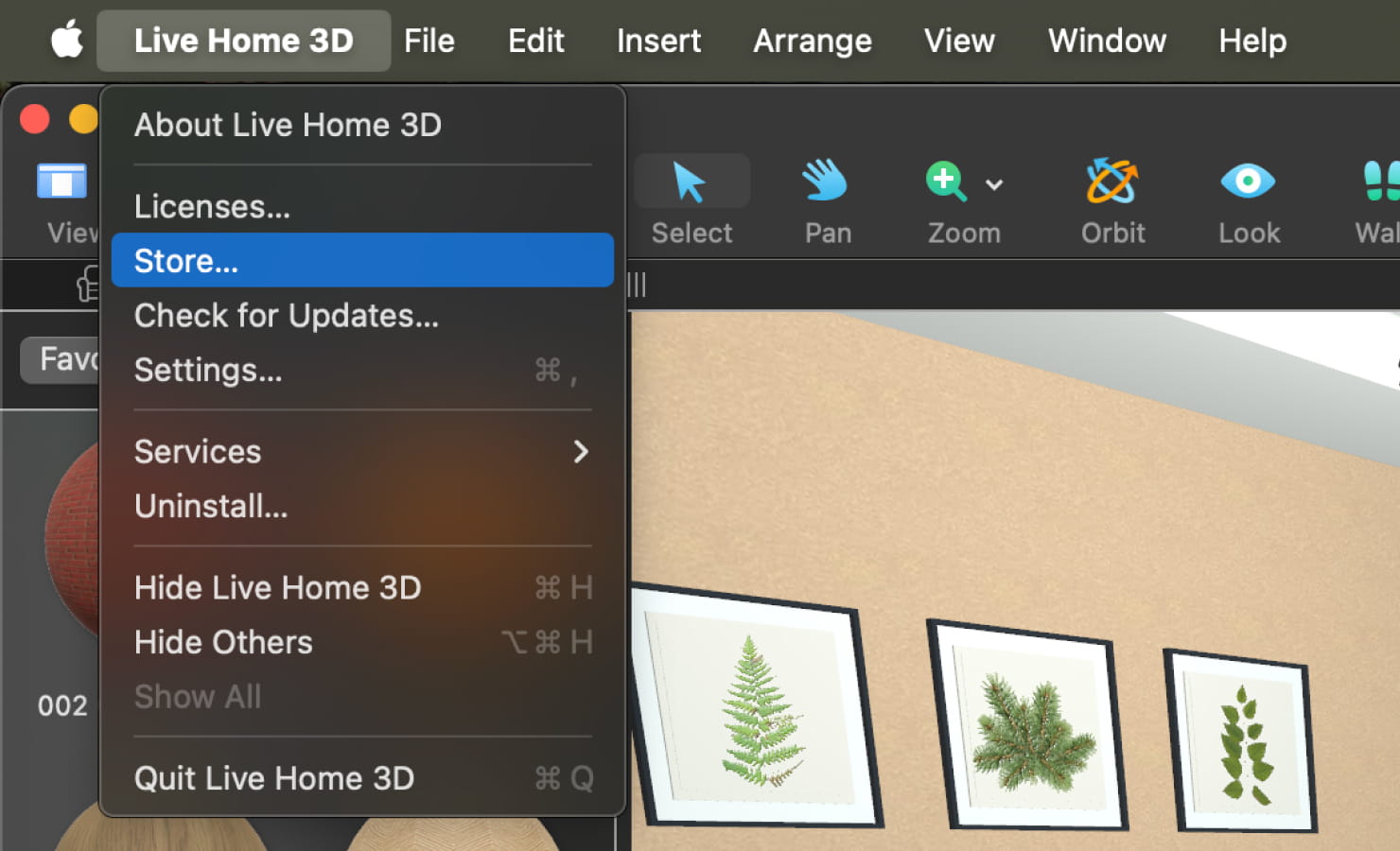
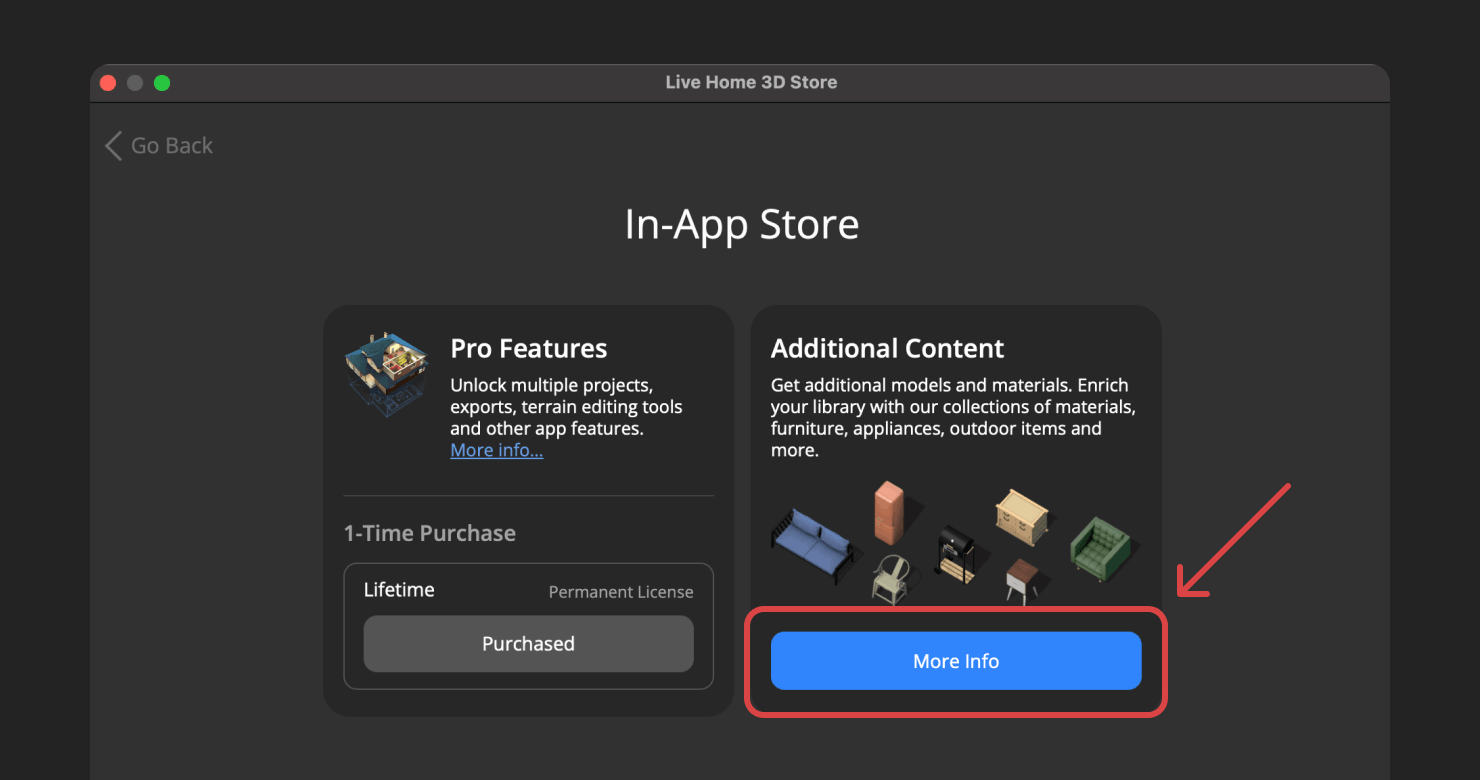
There you see your Standard or Pro license purchased and the second (sometimes third) button is “More Info” (in the “Additional Content” section).
After clicking the “More Info” button, you see the “Purchased” button under the “All Extras Packs”, if you have already added the All Extras Packs license into the app.
If the button doesn't look like the one shown below, you may not have added the All Extras Packs license yet. In this case please do the following: open the “Live Home 3D > Licenses” menu and copy and paste the purchased license into the dialog.
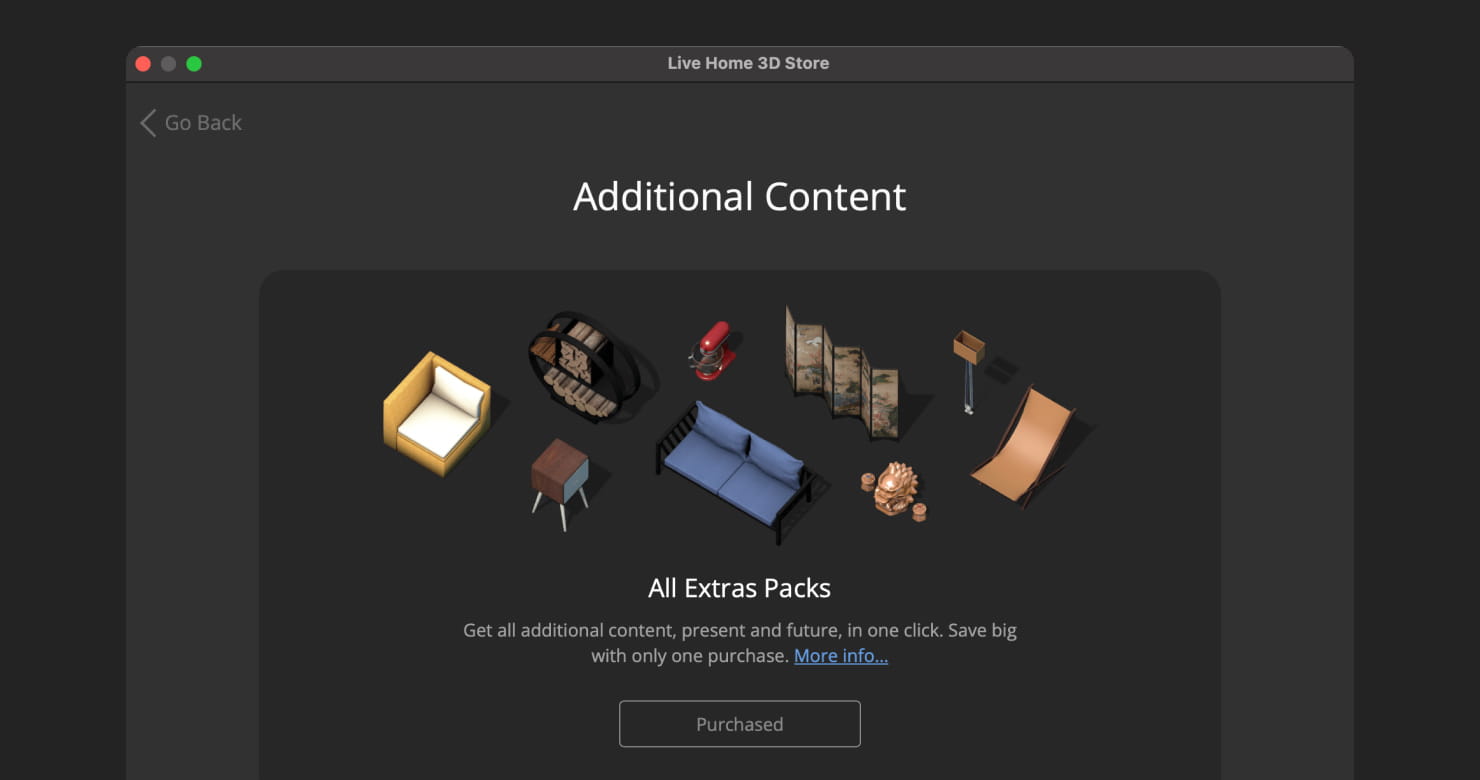
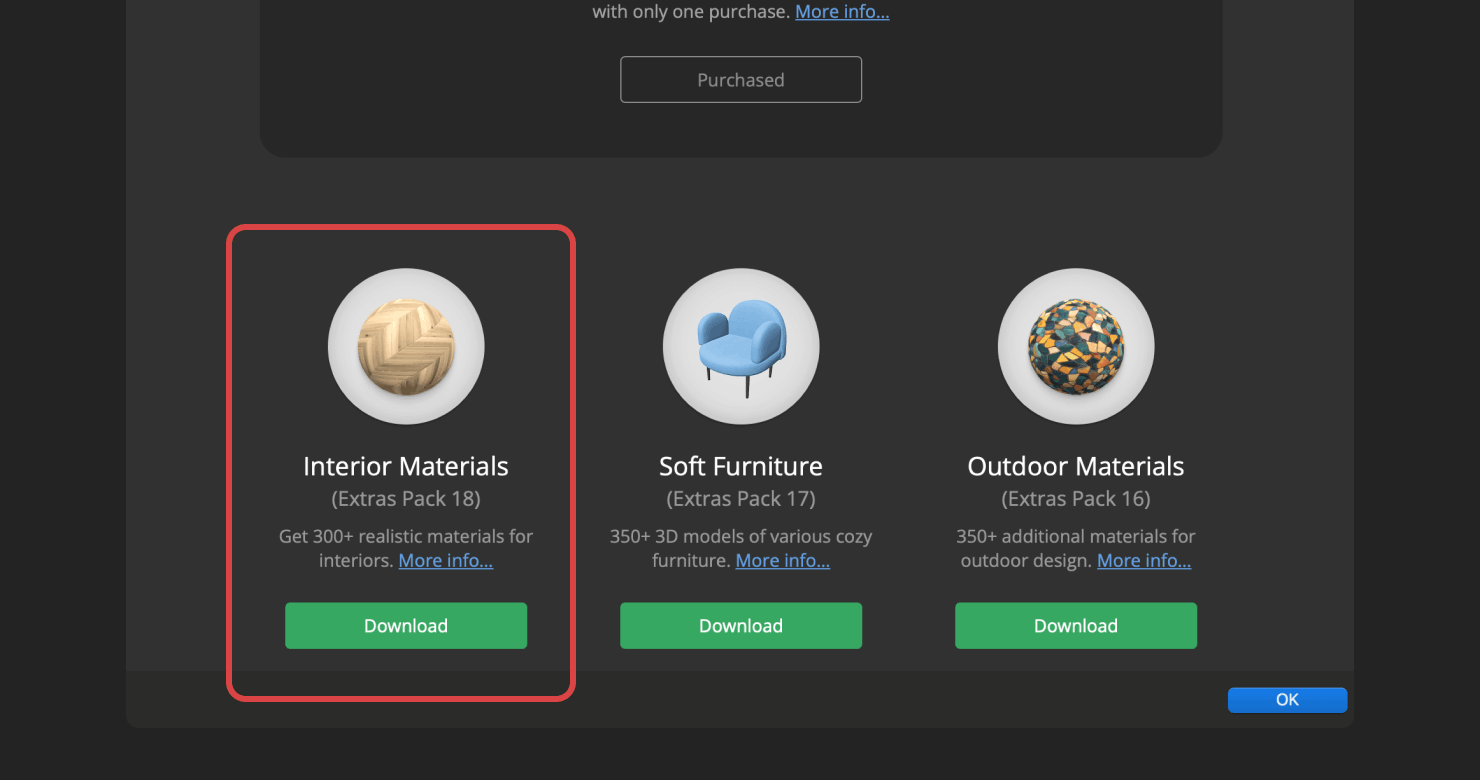
If you see the greyed out button, you need to stay on this page and scroll down. You will see the list of the in-apps included into the All Extras Packs bundle.
If there are “Download” buttons underneath each of them, you need to manually download each in-app and restart the app. The downloaded objects and materials will be added to the Libraries automatically.
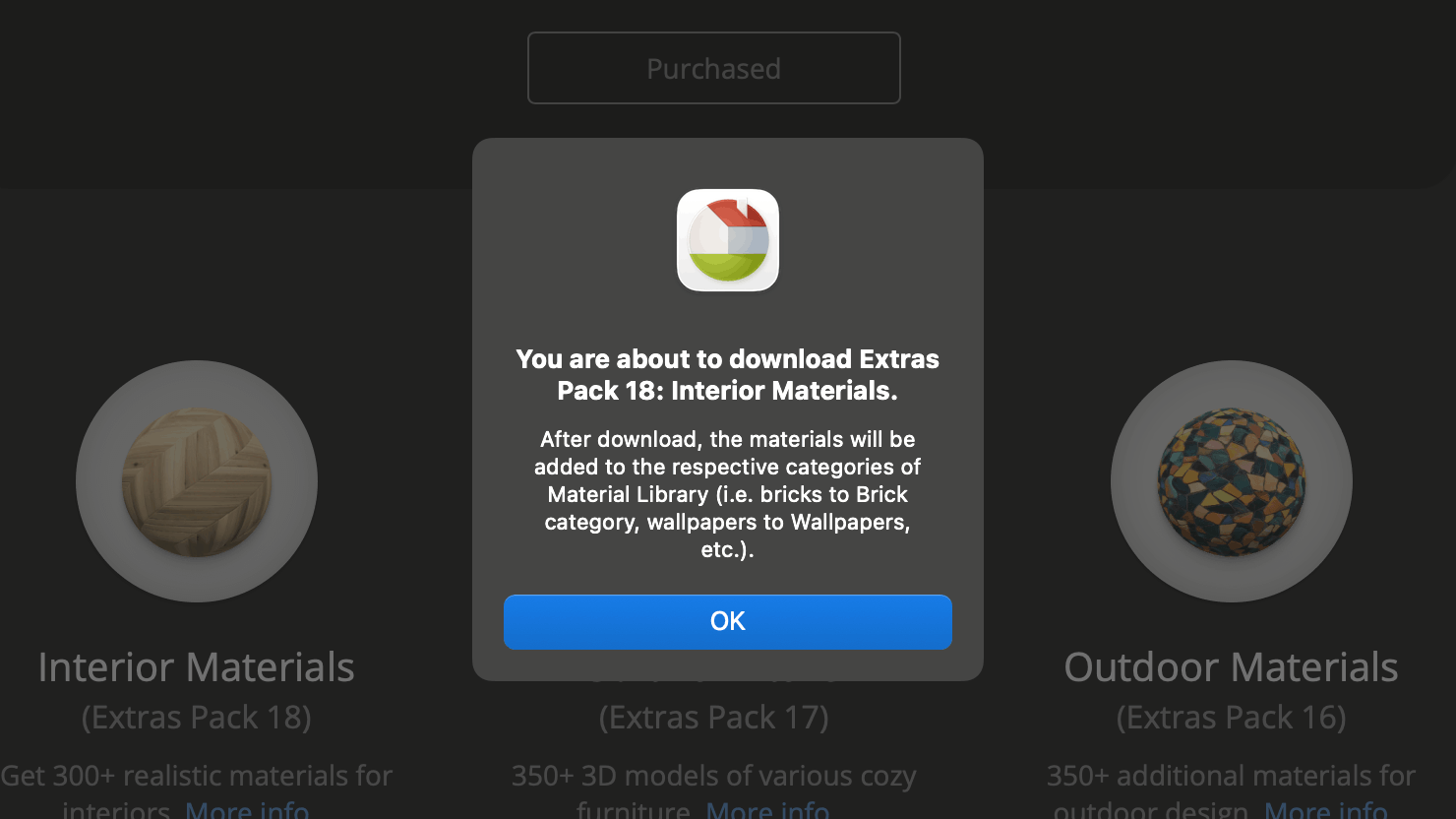
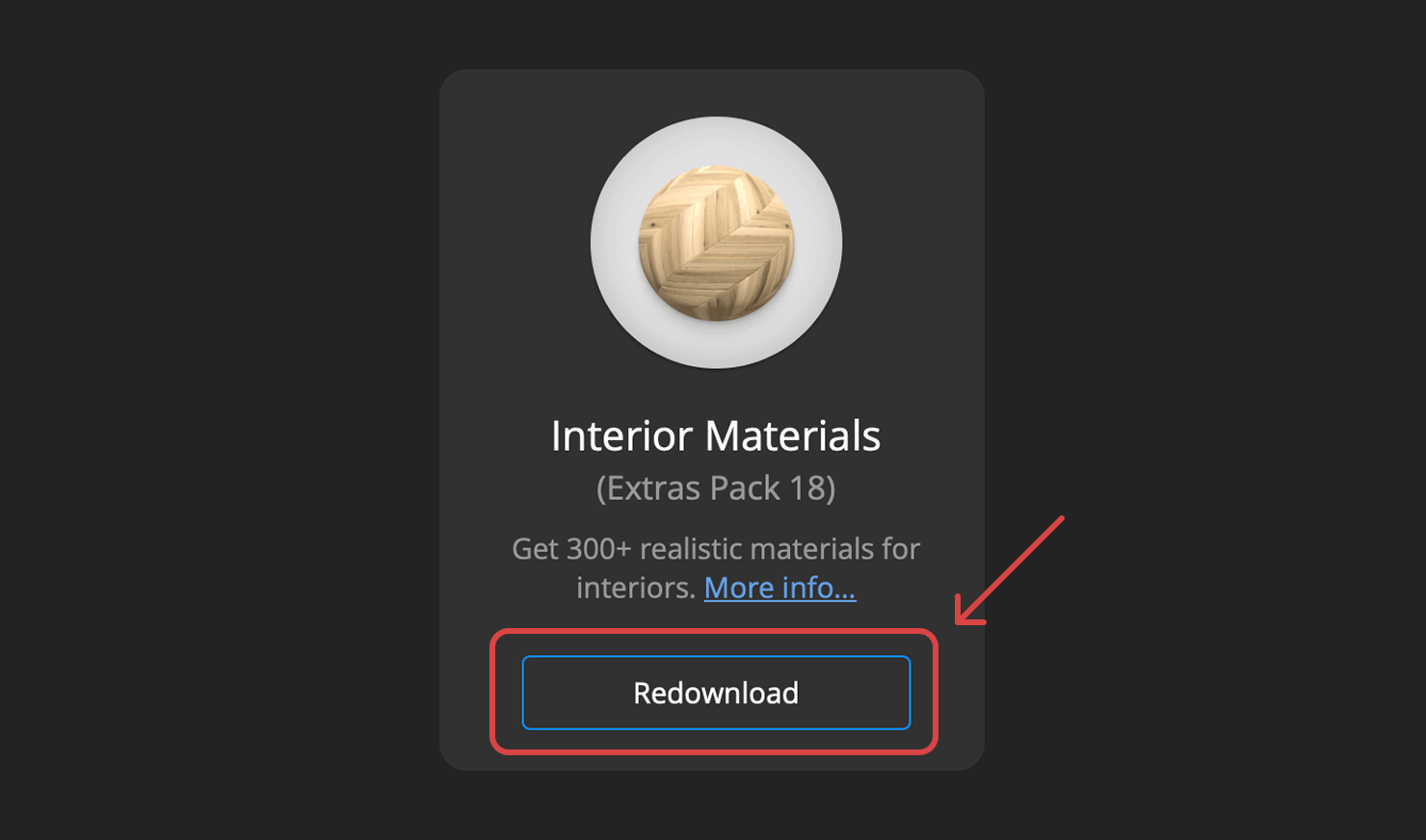
If the buttons underneath the packs are grayed out and read “Redownload”, this means you have already downloaded them before and they are available in your app.