Live Home 3D Workspace
The Main Window
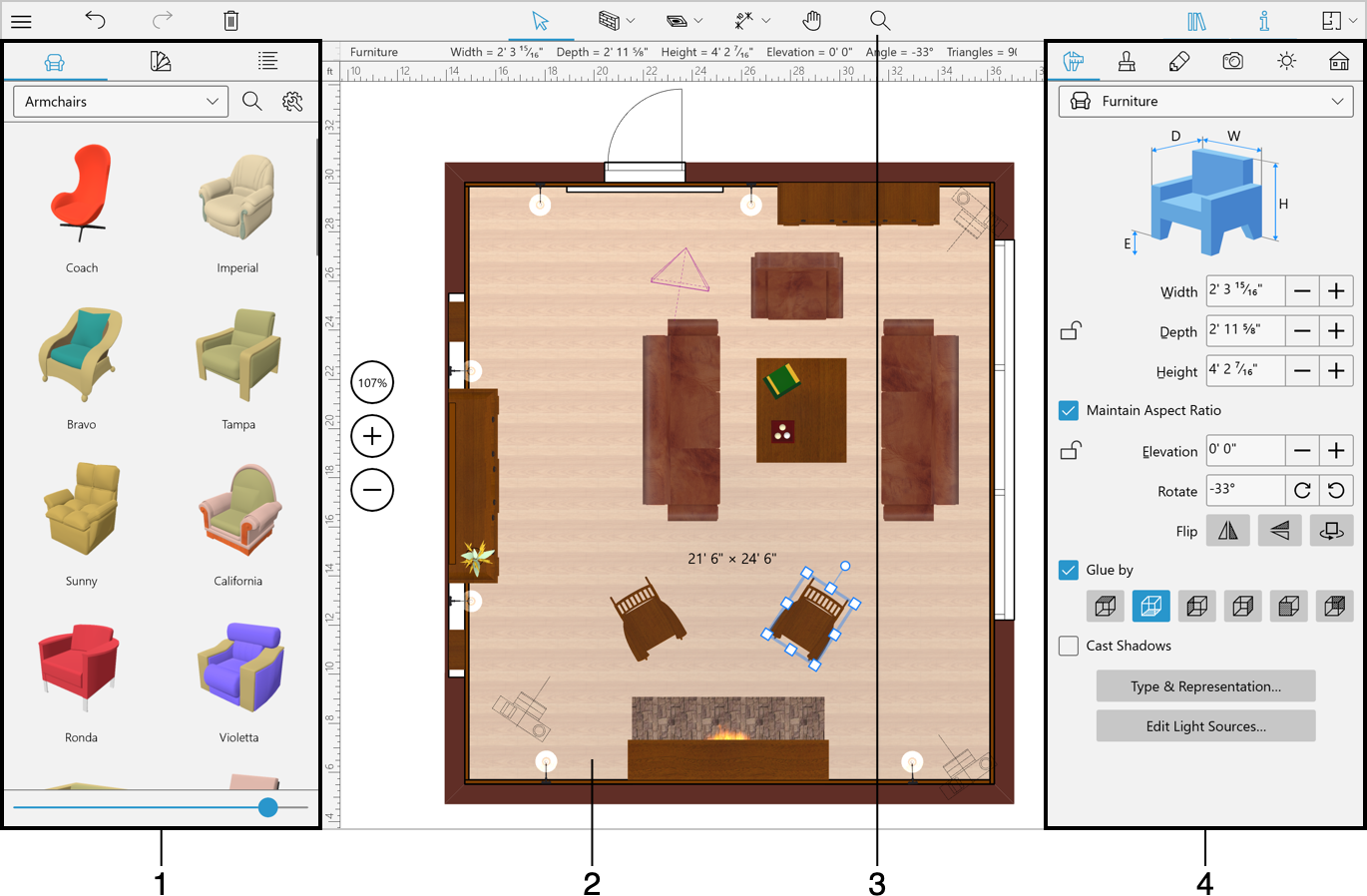
1 – The toolbar with 2D Plan, 3D view or 2D Elevation view tools. The available set of tools depends on which view is activated.
2 – The Library panel can display the 3D object or material library or the Project Tree.
3 – The editing area can display a floor plan, elevation or 3D view.
4 – The Inspector.
Controlling Views and Panels
There are buttons in the toolbar that let you activate 2D or 3D views, or open the menu or panels.
 – Open the menu. It contains commands to open the Gallery and Settings. It also lets you open or save projects and access the documentation and tutorials.
 – Open or close the Library panel that includes the object and material libraries and the Project Tree.
 – Open or close the Inspector.
 – Display the 2D Plan view.
 – Display the 2D Elevation view. (Pro edition only)
 – Display the 2D and 3D views together in the Split Mode.
 – Display the 3D view.