Working with Projects
Backing up the Object and Material Libraries
The object and material libraries are not a part of your project, nevertheless they may store some of the user’s content.
The app allows you to back up objects and materials added to the library by a user. This can be useful if you want to migrate to another computer, or when you need to upgrade the app or operating system. There is no option to back up the standard library because you can restore it by reinstalling the app.
You should use the General section of the Settings panel to back up and restore your library. In order to open Settings, click the menu button and select Settings.
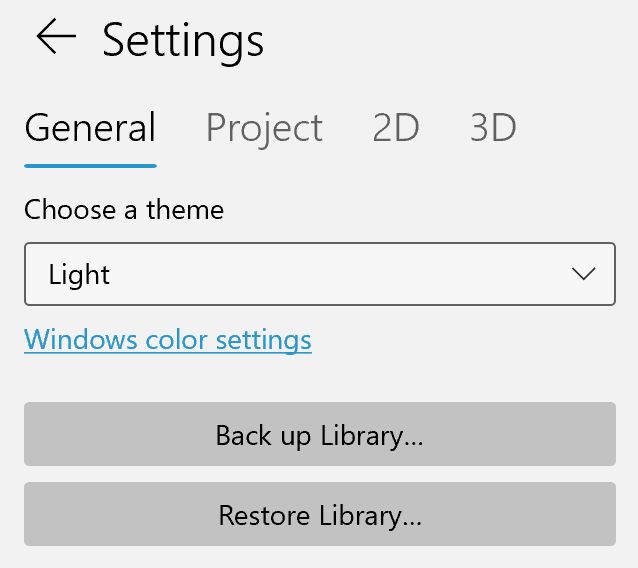
To create a backup, click the Back up Library… button and specify where the app should save it.
To import your objects and materials from a backup, click the Restore Library… button. The app will ask you if you want to merge or replace the customized contents which are already present in the libraries with one from the backup. If you choose Replace, all customized objects and materials will be removed from the library before restoring the contents of the backup. If you choose Merge, the contents of the backup will be added to what you currently have in the libraries. In case of a conflict (e.g. same object name in the library and backup), the app will keep an object already present in the library as opposed to replacing it with one from the backup.