Introduction
User Account
You can create a Live Home 3D account and link your purchases to it, sharing any in-app purchases — Pro and Std Features licenses, subscriptions, and extras packs — across Mac, iOS/iPadOS, Windows, and Android without re-buying them.
To manage your account, choose Live Home 3D > User Account… It opens the User Account dialog which has three sections: Account Details, Purchases and Authentication Methods. The dialog provides email verification, the sign-in and sign-up flow, and also account management. These features are available on all platforms.
Creating a User Account
To create an account or to sign in to your Live Home 3D account, choose Live Home 3D > Sign In… See Signing In for more details.
Account Details
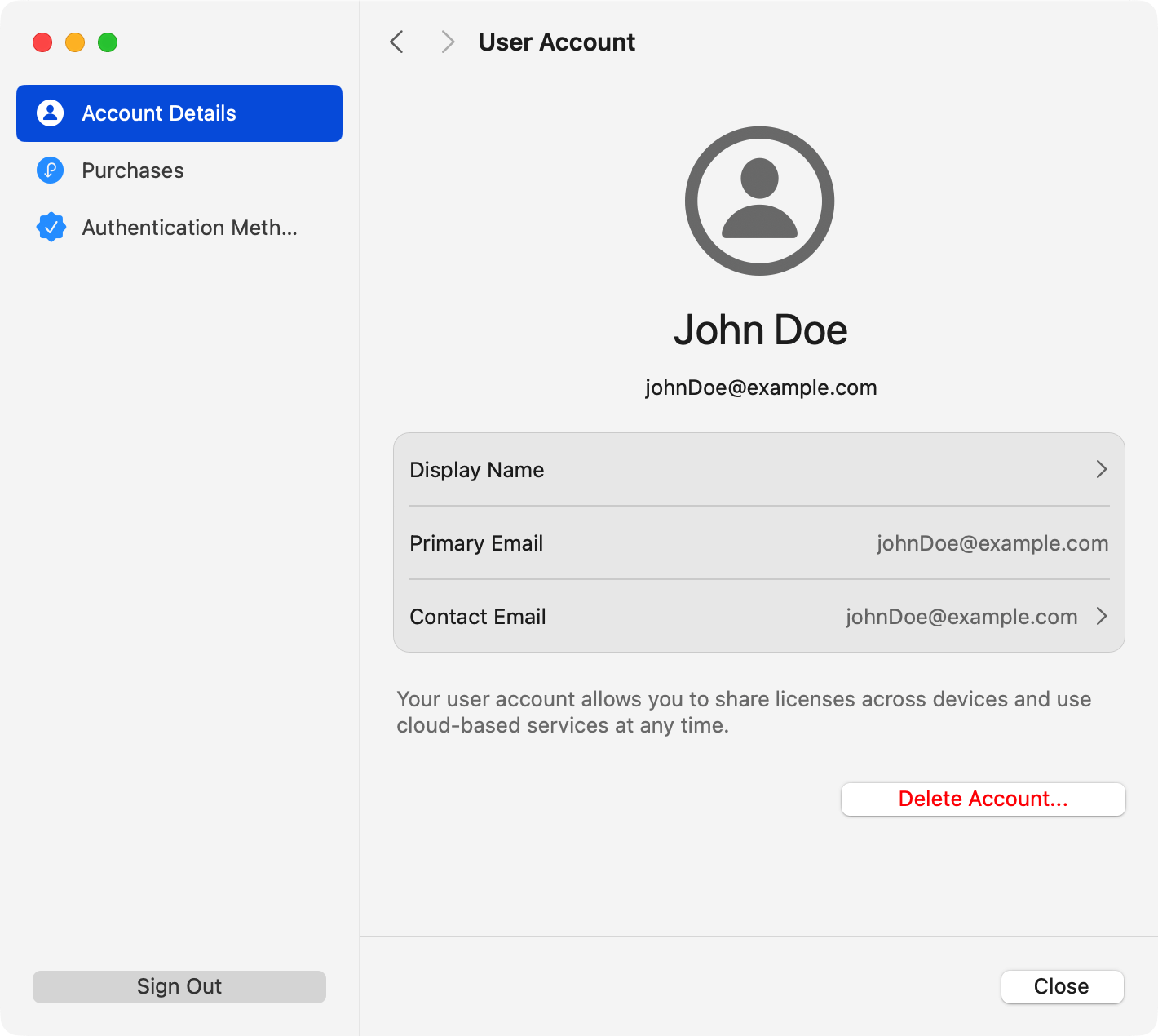
Display Name is the name that will be associated with your account.
Primary Email is used to create your account and validate your ownership.
Contact Email is an optional email to receive special offers and news related to the app.
The Delete Account… button removes your account together with your render credits, license sharing and other features that you received by signing in. Once the account is deleted, you can only create a new account.
Purchases
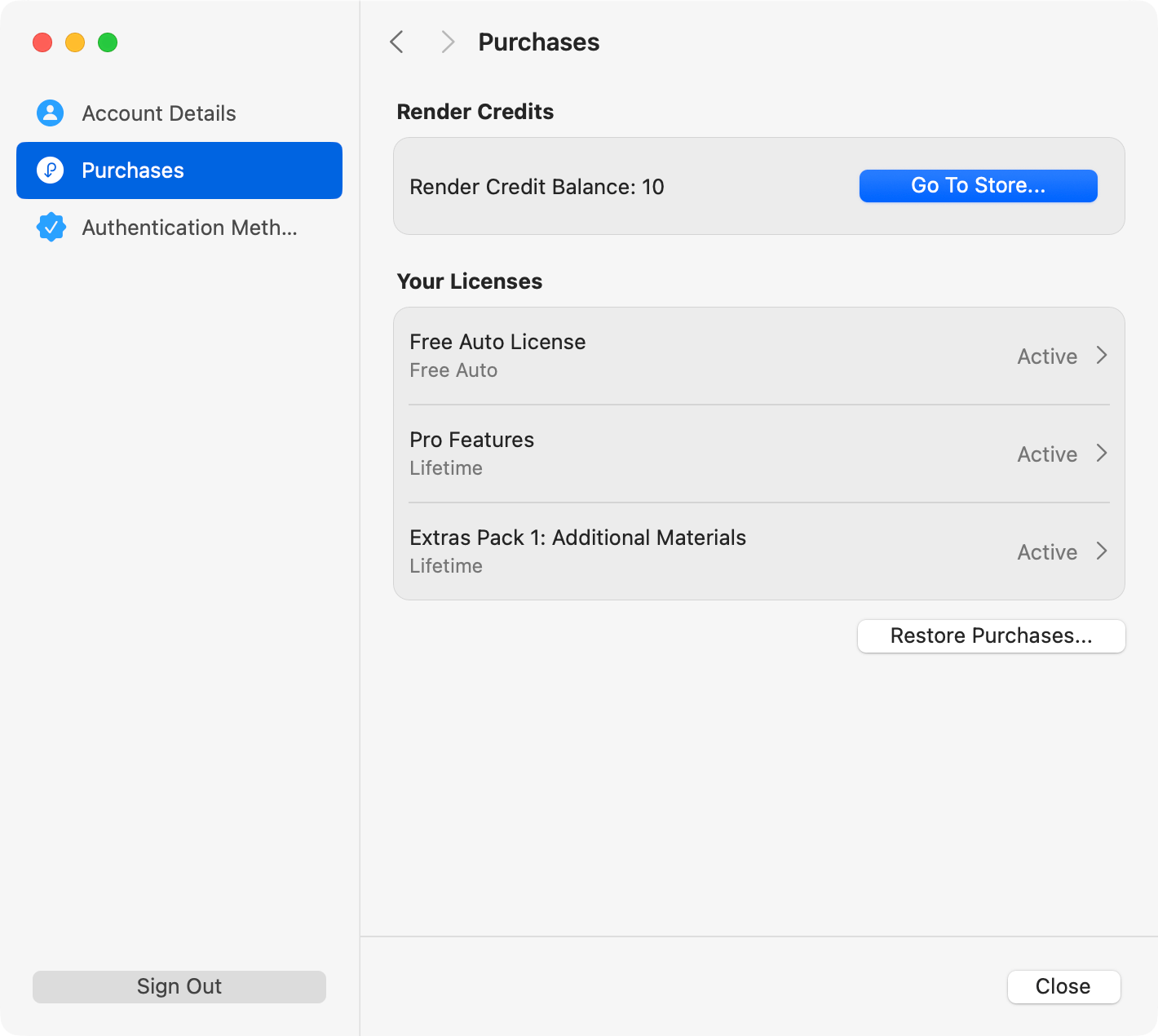
Render Credits
In this subsection, you can see how many render credits you have. If you want to buy more, click the Go To Store… button.
Your Licenses
This subsection lists all the licenses that you have for the app and for additional content such as 3D models and materials. Click a license to find out its type and status.
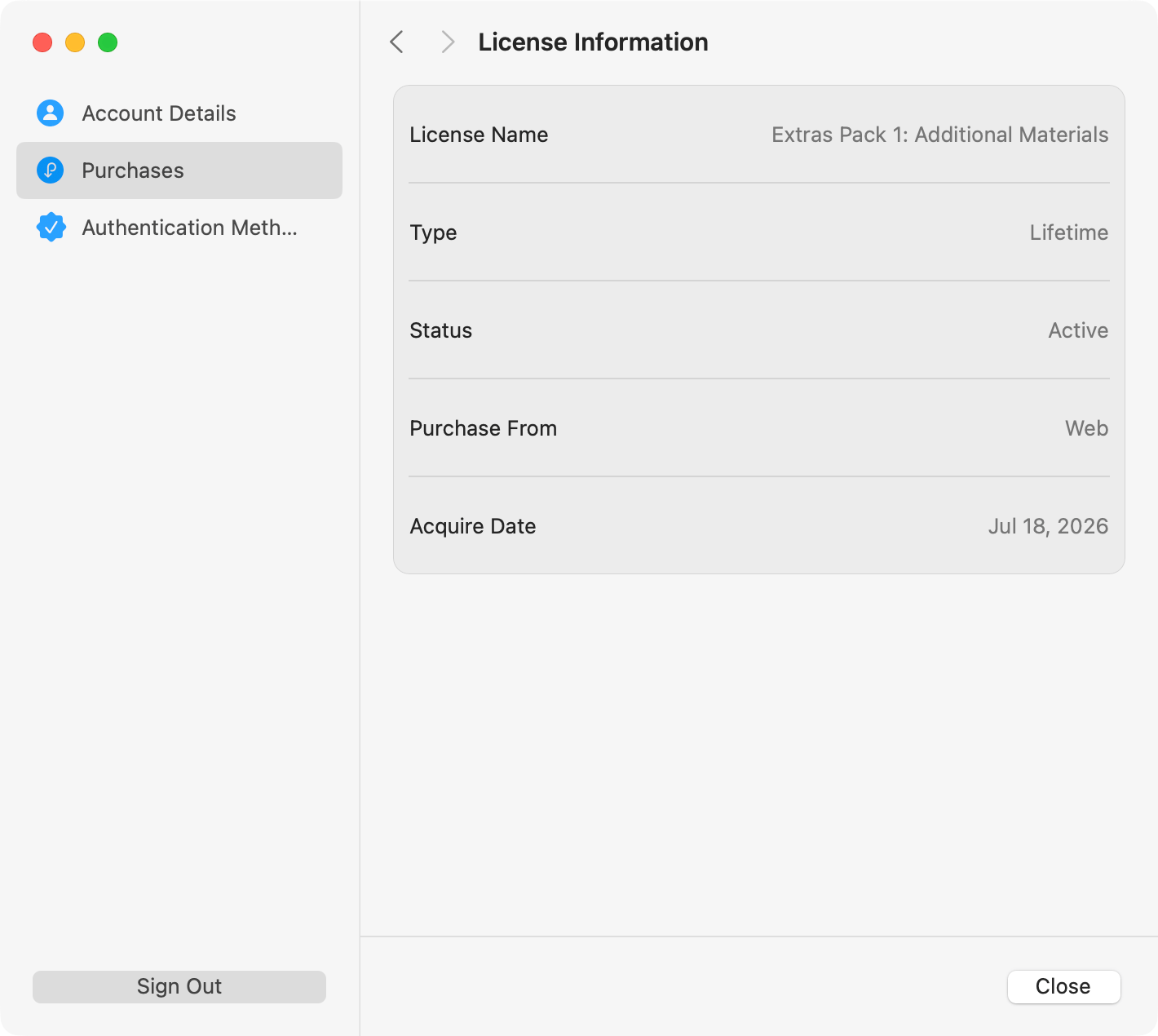
Note that to manage your licenses, you should use the Licenses dialog.
Authentication Methods
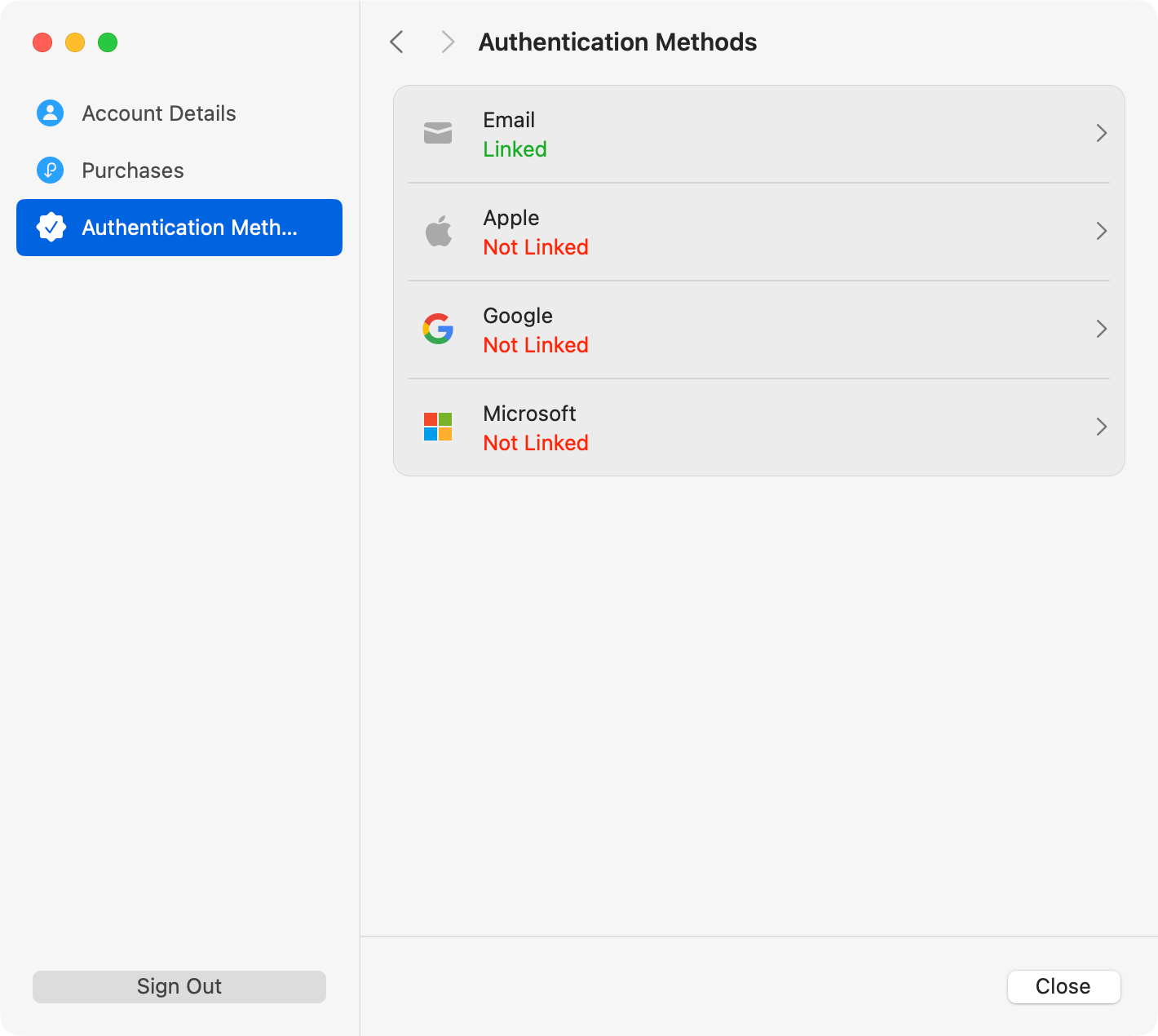
Authentication methods related to different platforms can be linked to your account.