Introduction
Signing In
To sign in to your Live Home 3D account, choose Live Home 3D > Sign In… This command opens the Sign In dialog.
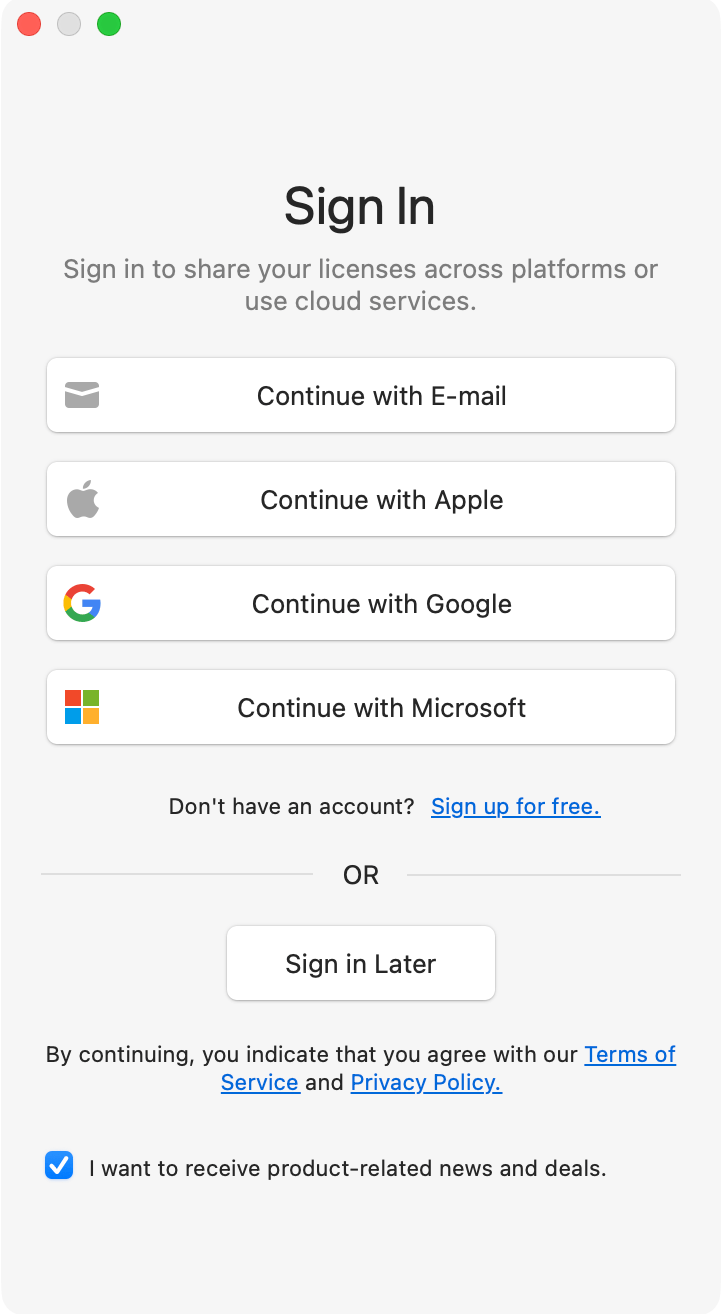
Then click one of the Continue with… buttons to choose your preferred authentication method:
- Continue with Email
- Continue with Apple
- Continue with Google
- Continue with Microsoft
If you don’t have a Live Home 3D account yet, you can sign in with one of the authentication providers (Apple, Google or Microsoft), or click Sign up for free to create a new account using an email address.
Once you are signed in, the Sign In… menu item is replaced by User Account… It opens your account details and linked licenses. For more information, see User Account.
Signing In with Apple
In the Mac App Store edition, clicking Continue with Apple opens the standard macOS Sign in with Apple system dialog. Authenticate using your Apple ID credentials or Touch ID, then confirm the authorization. No browser window is opened.
In the direct-download edition, clicking Continue with Apple opens a browser window with Apple’s authorization page. Complete the sign-in there, and the app will be updated automatically once the authorization is granted.
Signing In with Google or Microsoft
Clicking either of these options opens a browser window with the respective provider’s authorization page. Sign in with your Google or Microsoft account and grant access to Live Home 3D. Once you confirm, the browser redirects back and the app detects the successful authorization automatically.
Signing In with Email
Clicking Continue with Email opens a dialog where you enter the email address and the password of your Live Home 3D account. If you have forgotten the password, click Forgot your password? and follow the instructions to reset it with a 6-digit code sent to your email address.
Creating a New Account
If you do not have a Live Home 3D account yet, click Sign up for free in the Sign In dialog. That opens the Sign Up for Free dialog where you enter your email address.
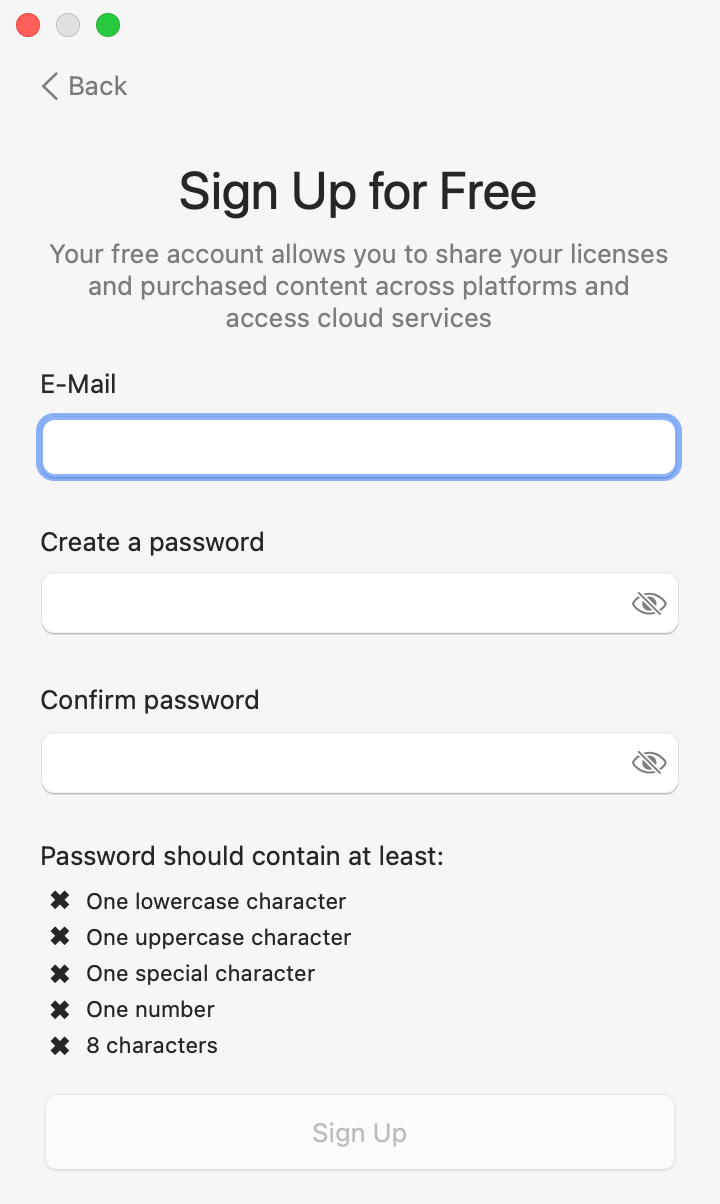
Then create a password. It should contain at least 8 characters, including a lowercase character, an uppercase character, a number and a special character.
After that, the app sends a 6-digit code to the address you entered and opens the Confirm Your Email dialog. Open the email, copy the code and enter it into the dialog. The code is valid for a limited time. If it expires before you enter it, use the Resend code button to receive a new one.
Signing Out
To sign out, click the Sign Out button in the User Account dialog. You will be signed out immediately. In order to sign in later on, just follow the steps at the beginning of this page.