Live Home 3D Workspace
The Project Gallery
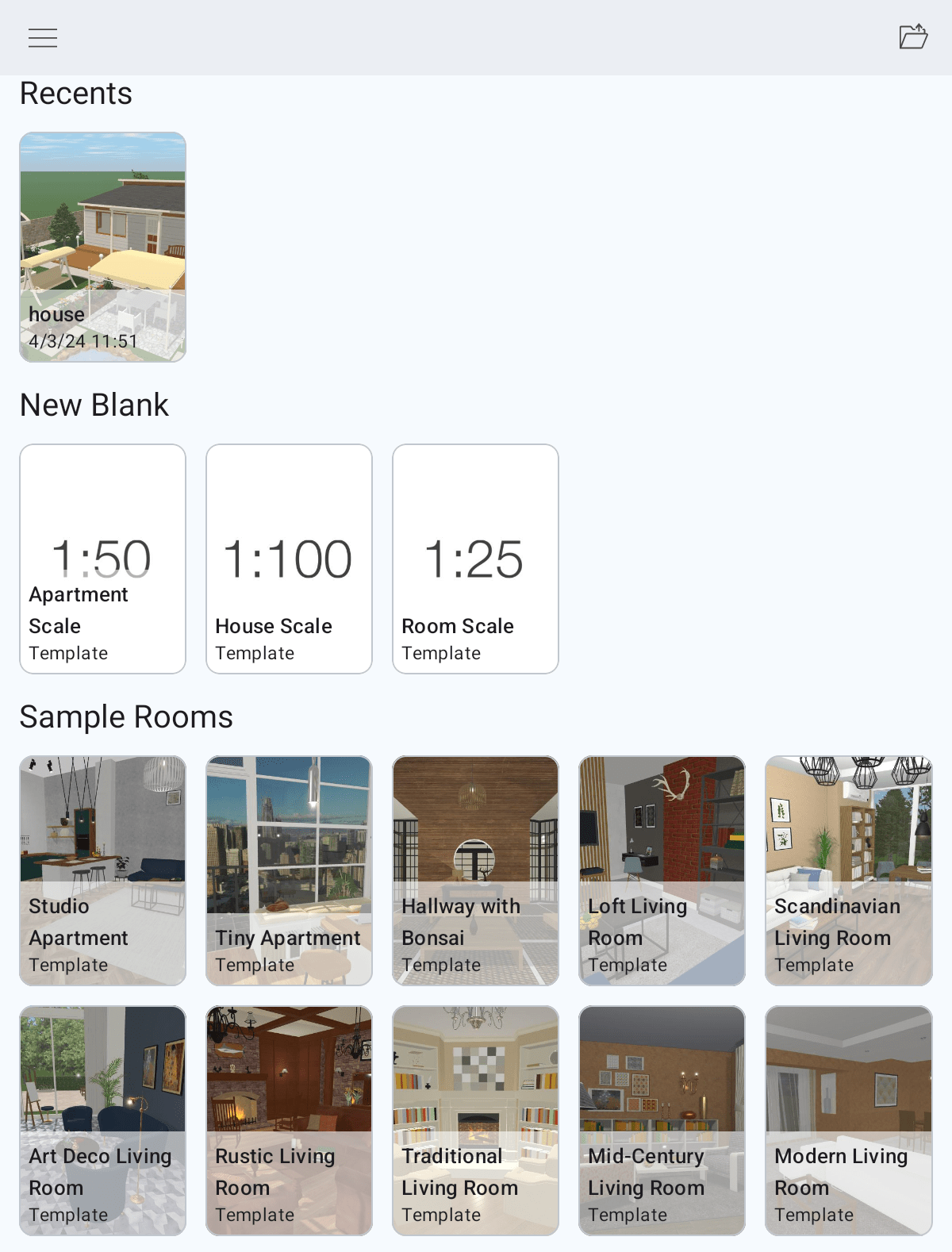
The Project Gallery lets you create new projects from scratch, or by editing one of sample projects. It also gives you access to your own projects. The sample projects are intended to learn how the software works, and show what can be created in the app. Those projects are grouped into several categories. Apart from the sample projects, the gallery lets you open recently edited projects or templates created by the user.
To open the Project Gallery, tap the menu button and choose the Project Gallery command. The Project Gallery opens up automatically when you start the app for the first time.
The Menu Panel
The menu lets you show previews of all available projects or select one of the categories. To open the menu, tap the menu icon  .
.
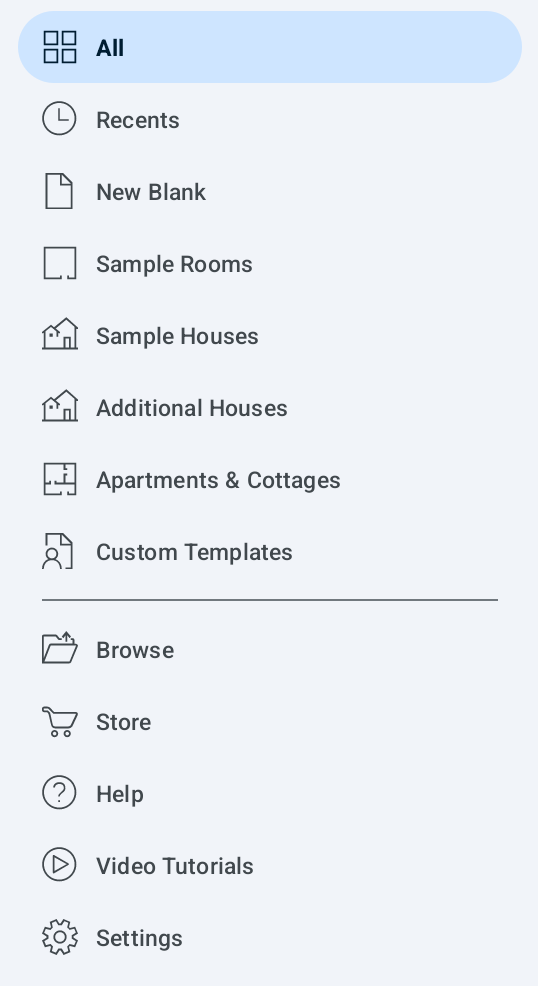
The lower part of the menu lets you open projects from your device storage, bring up the settings, tutorials or the in-app store.
A quicker way to open a project stored on your device is to tap  in the upper right corner of the screen.
The List of Projects
The main part of the gallery displays the list of projects. To open a project, tap it.
To rename or delete your project, touch and hold it. Then choose the corresponding command from the context menu. Sample projects don’t support these commands.
Create a New Project
To create a new project, tap any template in the New Blank category.
The procedure for creating a custom template is explained in the Saving Projects section. To delete a custom template, select the Custom Templates category, and then touch and hold a template and select Delete.
The app opens any template as a new document. If you modify it and choose to save it, the app will create a new file keeping the original template intact.